FREE Custom PC Build Quotes
• Receive a personalized parts list and ready-to-order quote within
24–48 business hours.
Request Yours →
FREE Custom PC Quote →
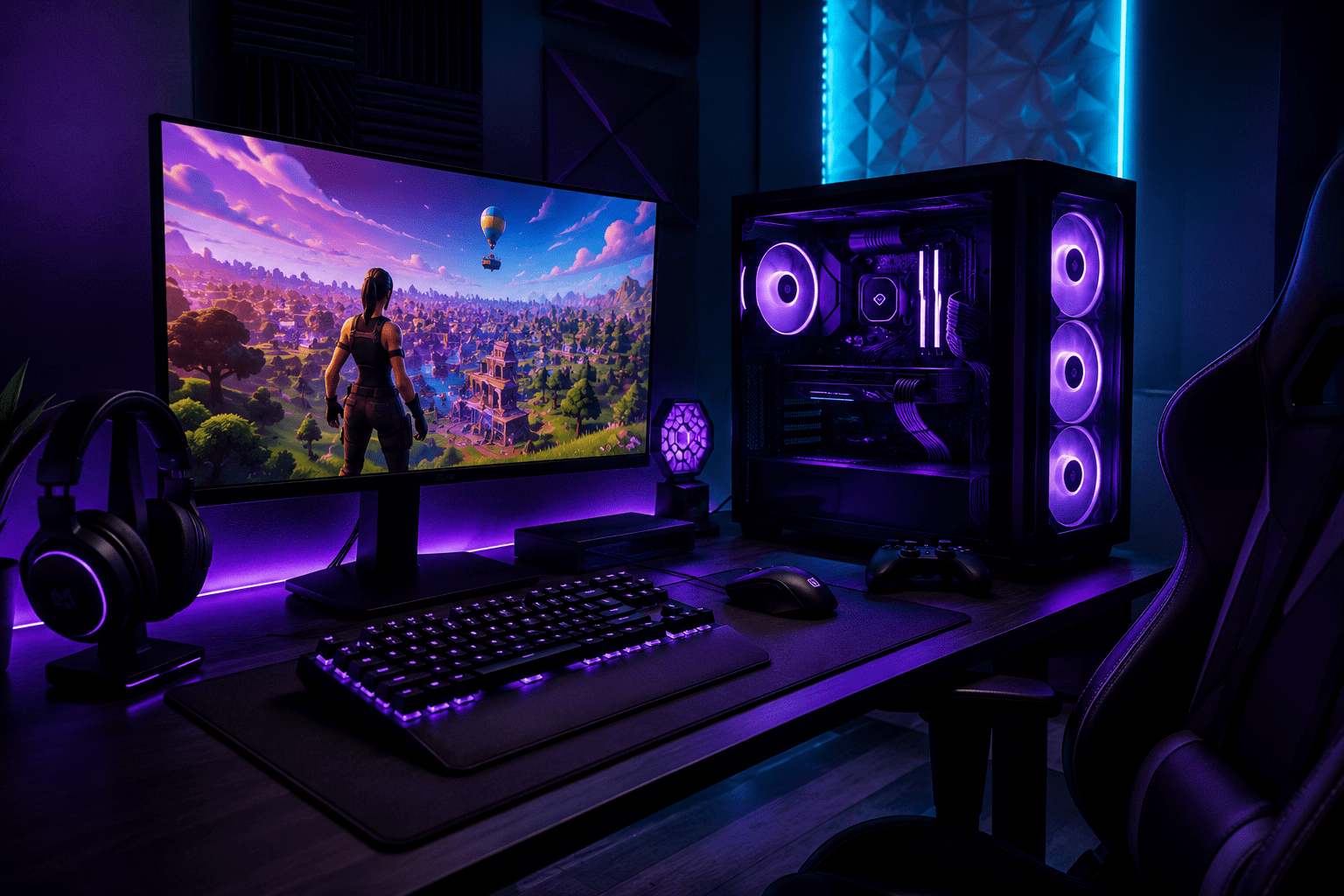
How Pros Optimize Their PCs for Fortnite
Competitive Fortnite is not just about having a powerful PC. Pro-level performance comes from stable FPS, low input delay, clean frametimes, good thermals, and a system that stays responsive when endgames get stacked.
Quick Navigation
If you have ever watched a pro Fortnite player and wondered why their game looks smoother, faster, and more responsive, it is not only because of mechanics.
Competitive players optimize the entire experience: Windows, drivers, thermals, Fortnite settings, peripherals, monitors, and internet stability.
Simple truth: Fortnite performance is not just “more FPS.” It is stable FPS, low latency, clean input response, and a system that stays consistent during stacked endgames.
1. Stable FPS Matters More Than Peak FPS
Most players focus only on the highest FPS number they can reach. Competitive players care more about consistency and smooth frametimes.
- Stable average FPS
- Low 1% lows
- Minimal stutters
- Responsive gameplay
- Consistent performance during endgames
Related guide: Why Your FPS Drops in Fortnite
2. Competitive Fortnite Settings
Pros usually lower unnecessary graphics settings because they prioritize visibility and responsiveness over visual quality.
Common Competitive Settings
- Performance Mode
- Low shadows
- Low post-processing
- Motion blur disabled
- V-Sync off
- NVIDIA Reflex enabled
3. Windows Optimization Is Important
Fortnite performance is affected by more than the game itself. Windows settings, drivers, overlays, and startup apps can all reduce responsiveness.
Startup Apps
Too many startup programs waste CPU and RAM resources.
Drivers
Incorrect or outdated drivers can cause instability and stutters.
Overlays
Discord, Xbox Game Bar, and overlays may increase delay.
Power Settings
Bad Windows power settings can reduce CPU and GPU performance.
This is why a professional remote PC optimization can improve smoothness even without upgrading hardware.
4. Cooling and Thermals
Heat can dramatically reduce performance. If your CPU or GPU overheats, the system may automatically lower clock speeds.
- FPS drops after long sessions
- Loud fans
- Random stutters
- High temperatures
Need diagnostics or repairs? View our PC repair services .
5. Hardware Should Match Your Goals
| Player Type | Main Goal | Priority |
|---|---|---|
| Casual | Smooth gameplay | Stable FPS |
| Competitive | Low delay | CPU + RAM |
| Streamer | Gaming + streaming | Balanced system |
| Pro-Level | Maximum consistency | Everything optimized |
Not sure if you need upgrades or optimization? Read this guide .
6. Network Stability Matters
Even a powerful gaming PC can feel inconsistent if the internet connection is unstable.
- Use Ethernet whenever possible
- Avoid downloads while gaming
- Restart your router occasionally
- Check packet loss, not only ping
Stable ping matters just as much as low ping.
7. Monitor and Peripheral Setup
Your monitor, mouse, keyboard, and USB setup also affect how responsive Fortnite feels.
Competitive Setup Checklist
- Correct monitor refresh rate enabled
- Mouse polling rate configured properly
- Correct monitor overdrive settings
- Stable USB devices
Final Thoughts
Competitive Fortnite performance comes from optimizing the full experience — not just buying expensive hardware.
If your game feels delayed, inconsistent, or stuttery, your PC may simply need proper optimization.
At DkBuildsPC, we build, repair, and optimize gaming PCs for real competitive performance.
Fortnite Optimization FAQ
Does optimization increase Fortnite FPS?
Yes. Optimization can improve stability, FPS drops, frametimes, and responsiveness.
Why does Fortnite feel delayed?
High FPS alone does not guarantee responsiveness. Drivers, thermals, overlays, and frametimes also matter.
Is Ethernet better for Fortnite?
Usually yes. Ethernet is generally more stable than Wi-Fi.
Can RAM affect Fortnite FPS?
Yes. RAM speed and configuration can significantly affect CPU-heavy games like Fortnite.
Want Your Fortnite PC to Feel Faster?
We can help improve FPS, reduce input delay, clean Windows, optimize settings, and make your PC feel smoother for real gameplay.