FREE Custom PC Build Quotes
• Receive a personalized parts list and ready-to-order quote within
24–48 business hours.
Request Yours →
FREE Custom PC Quote →
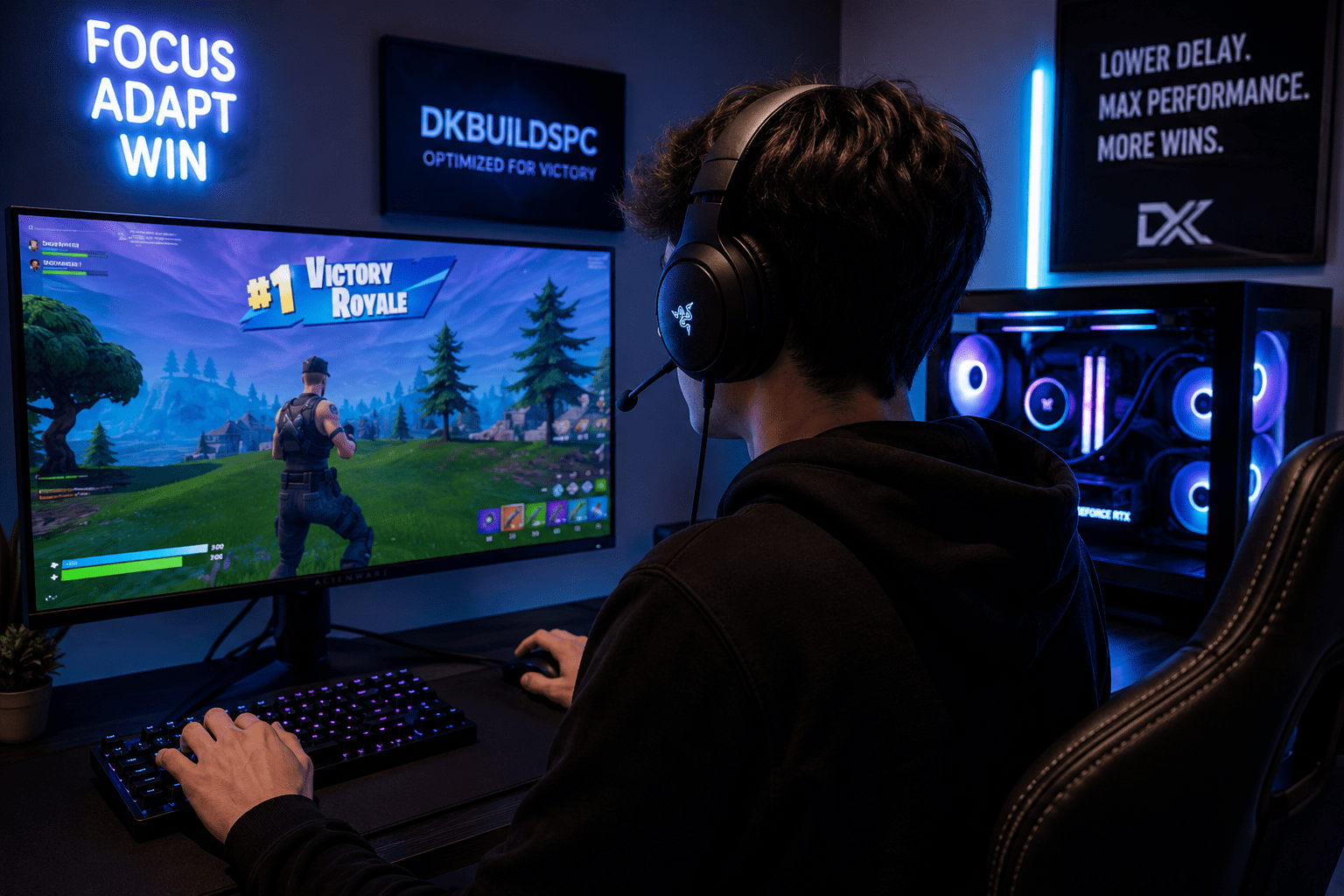
How to Lower Input Delay in Fortnite on PC, PS5, Xbox & Gaming Laptops
If Fortnite feels delayed, inconsistent, or “heavy,” input delay may be the reason. Even on high FPS systems, poor optimization can create slower edits, delayed shots, inconsistent aim, and sluggish movement.
Lowering input delay is one of the biggest advantages competitive Fortnite players can gain. The faster your PC, console, or gaming laptop responds to your keyboard, mouse, or controller, the more immediate your gameplay feels.
At DkBuildsPC , we optimize gaming systems specifically for low latency, smoother gameplay, and competitive responsiveness. This guide covers the most effective ways to reduce Fortnite input delay in 2026.
Quick Answer:
To lower input delay in Fortnite, use Performance Mode, cap FPS correctly, optimize graphics settings, reduce background processes, use a high refresh rate monitor, and optimize your network connection.
To lower input delay in Fortnite, use Performance Mode, cap FPS correctly, optimize graphics settings, reduce background processes, use a high refresh rate monitor, and optimize your network connection.
1. Use Fortnite Performance Mode
Fortnite’s Performance Mode significantly reduces rendering overhead and improves frame consistency. Lower rendering latency often results in noticeably better responsiveness during fights and fast edits.
- Open Fortnite Settings
- Go to Video Settings
- Set Rendering Mode to Performance (Lower Graphical Fidelity)
- Restart Fortnite
Performance Mode is especially effective for competitive players focused on lower latency rather than visual quality.
2. Optimize Your FPS Cap Correctly
Many players incorrectly set unlimited FPS thinking it lowers delay. In reality, unstable frame pacing can increase latency spikes and create inconsistent gameplay.
A better method is capping FPS slightly below your monitor’s refresh rate:
- 240Hz Monitor → Cap at 237 FPS
- 165Hz Monitor → Cap at 162 FPS
- 144Hz Monitor → Cap at 141 FPS
- 120Hz Monitor → Cap at 117 FPS
Stable frametimes are often more important than simply having the highest FPS possible.
3. Lower NVIDIA & AMD Input Latency
GPU settings can dramatically affect responsiveness in Fortnite. Whether you use NVIDIA or AMD, proper driver settings can improve input response and smoothness.
Recommended NVIDIA Settings:
Recommended AMD Settings:
- Low Latency Mode → Ultra
- Power Management Mode → Prefer Maximum Performance
- Texture Filtering Quality → High Performance
- Vertical Sync → Off
- Max Frame Rate → Off
- Shader Cache → Unlimited
Recommended AMD Settings:
- Anti-Lag → Enabled
- Radeon Chill → Disabled
- Enhanced Sync → Off
- Texture Filtering Quality → Performance
- Surface Format Optimization → Enabled
If you need professional optimization, our Remote PC Optimization Service includes advanced Windows, BIOS, GPU, and latency tuning tailored specifically for competitive gaming.
4. Disable Unnecessary Background Applications
Programs running in the background can consume CPU time, RAM, and interrupt Fortnite’s responsiveness.
Before launching Fortnite:
- Close unnecessary browser tabs
- Disable startup apps
- Close RGB software if unused
- Disable overlays (Discord, Xbox Game Bar, GeForce Overlay)
- Pause Windows updates
- Close unnecessary launchers and background software
Background processes often create inconsistent frametimes that feel like random lag during gameplay.
5. Optimize Windows for Gaming
Windows itself can introduce latency through power-saving features, background telemetry, USB power management, and scheduling behavior.
Competitive Fortnite players often optimize:
- Power plans
- USB selective suspend
- Game Mode settings
- Hardware Accelerated GPU Scheduling
- Timer resolution
- CPU parking
- Interrupt priorities
At DkBuildsPC , our optimization process goes far beyond basic YouTube tweaks. We customize settings depending on your hardware, internet connection, and playstyle.
Fortnite Input Delay on Gaming Laptops, PS5, and Xbox
Input delay is not only a PC problem. Gaming laptops and consoles like the PlayStation 5 and Xbox Series X can also experience delayed inputs, sluggish aiming, inconsistent edits, and heavy gameplay feeling.
Gaming Laptop Optimization Tips
Gaming laptops often struggle with thermal throttling, power-saving settings, and manufacturer software running in the background.
- Keep the laptop plugged into power while gaming
- Use Performance or Turbo mode in your laptop software
- Raise the back of the laptop for better airflow
- Lower unnecessary graphics settings
- Close RGB and manufacturer background applications
- Use Ethernet whenever possible
Overheating is one of the biggest causes of inconsistent FPS and delayed responsiveness on gaming laptops.
How to Lower Input Delay on PS5 and Xbox
Console players can still improve Fortnite responsiveness significantly with the right setup.
Recommended Console Settings:
- Enable 120 FPS Mode if your monitor or TV supports it
- Use a gaming monitor instead of a high-latency TV
- Turn on Game Mode on your display
- Use wired Ethernet instead of Wi-Fi
- Use wired controllers if possible
- Disable unnecessary background downloads
Many TVs introduce significant display latency. Switching to a low-latency gaming monitor can dramatically improve Fortnite responsiveness on both PlayStation and Xbox.
6. Use Ethernet Instead of Wi-Fi
Even perfect FPS settings cannot fix unstable internet latency. Ethernet provides lower ping, more stable packet delivery, and fewer random spikes than Wi-Fi.
- Use wired Ethernet whenever possible
- Avoid overloaded Wi-Fi networks
- Restart your router regularly
- Use Quality of Service (QoS) if supported
- Keep downloads and streams off your gaming network
7. Upgrade Your Monitor and Peripherals
Input delay is affected by more than just your PC or console. Your monitor, keyboard, mouse, controller, and headset setup also contribute to overall responsiveness.
- 240Hz or higher refresh rate monitors
- Low-latency gaming mice
- High polling rate keyboards
- Low response time displays
- Low-latency wired controllers
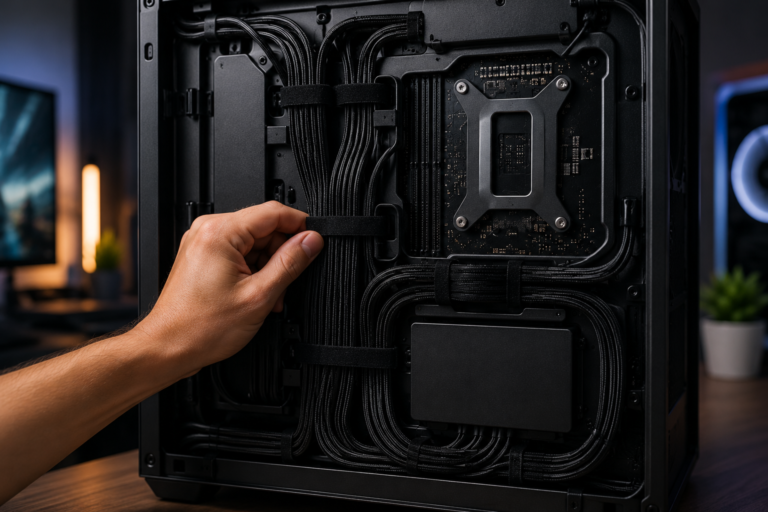
If you are planning a competitive gaming setup, check out our Professional Setup Services for custom gaming environments, cable management, and full setup optimization.
8. Keep Temperatures Under Control
High CPU or GPU temperatures can cause thermal throttling, leading to inconsistent FPS and delayed responsiveness.
Signs of thermal issues include:
- FPS drops after long sessions
- Random stutters
- Fans constantly at maximum speed
- Input feeling inconsistent during fights
Cleaning dust, replacing thermal paste, and improving airflow can dramatically improve performance stability.
Final Thoughts
Lowering input delay in Fortnite is not about one magic setting. It comes from combining optimized hardware, stable FPS, low latency settings, cooling, and proper network tuning.
The difference between a poorly optimized gaming setup and a properly tuned competitive system can completely change how Fortnite feels.
Need Professional Fortnite Optimization?
We offer advanced optimizations for gaming PCs, gaming laptops, and competitive setups looking for lower input delay, smoother gameplay, reduced stutters, and maximum FPS performance.
View Remote Optimization Services
Performance Mode and properBlog Comment Creation Guide FPS caps made a bigger difference for me than lowering every graphics setting to the minimum. One thing I’d add is that a lot of players overlook background apps like Discord overlays or browser tabs, which can still cause inconsistent frame times and make Fortnite feel less responsive even at high FPS.
Hey! Thank you for the comment and for sharing that insight. You’re absolutely right – background apps, overlays, and browser tabs can have a huge impact on frame consistency and overall responsiveness, especially in Fortnite. A lot of people focus only on graphics settings and overlook system optimization entirely. Really appreciate you adding that here!